
Login to your account!
Join the World's Largest Web App Marketplace!
Great to see you here!
Let’s set up your account in just a couple of steps.
Forgot password?
Enter your username or email to reset your account.
Temp Staffing for Perfex CRM - Jobs, Shifts and Timesheet Billing
By : GreenTech_Solutions Published On Thursday, November 12, 2026, 07:50 In PHP Scripts
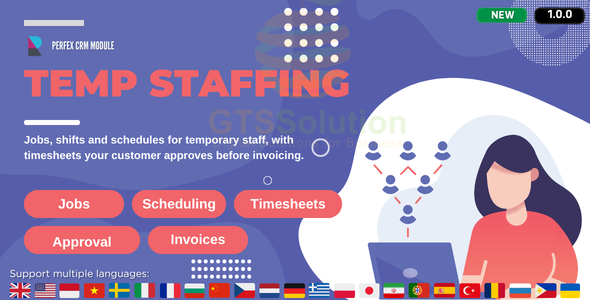
Note: This is a module for Perfex CRM. Not a standalone script.
Brief description
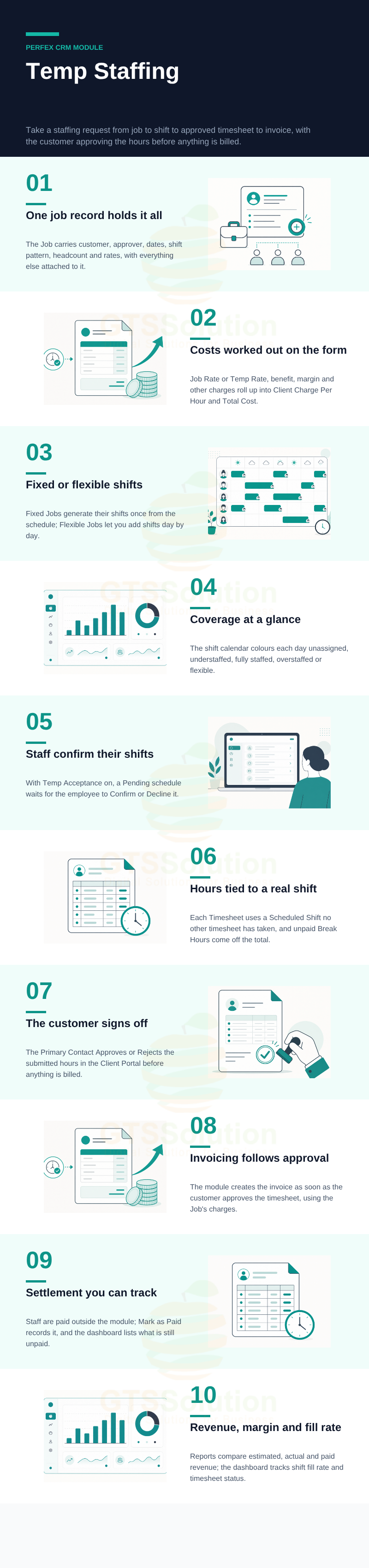
Temp Staffing Management runs the whole temporary-staffing cycle inside Perfex CRM. A customer request becomes a Job; the Job generates or receives Shifts; staff are assigned and confirm their Schedules; worked hours are recorded on Timesheets; the customer’s Primary Contact approves those hours in the Client Portal; and the module creates the invoice from the approved time. Reports and a Dashboard then show what was planned, what actually happened, and what has not been settled yet.

What you get
- Jobs that carry the customer, approver, dates, shift pattern, job title, headcount and the full rate build-up in one record.
- Fixed and flexible shift patterns on a colour-coded staffing calendar.
- Schedules temporary staff accept or decline when Temp Acceptance is enabled.
- Timesheets that deduct unpaid break hours and go to the customer for approval.
- Automatic customer invoicing from approved hours, plus a record of staff payroll settlement.
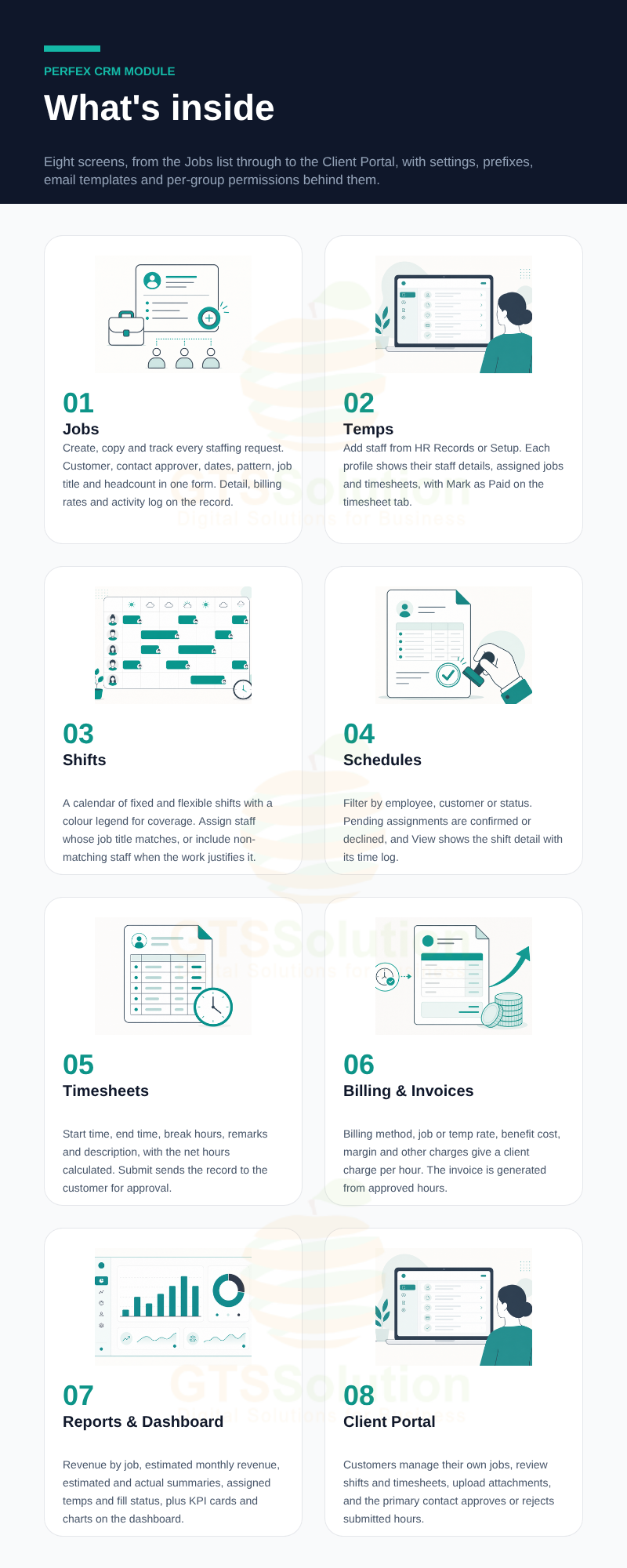
- Seven reports and a filterable KPI dashboard, with a Client Portal for your customers.
Module Features
- Jobs list and actions — Filter by status and open, create, copy, edit or delete a Job according to your permissions and the Job’s current status.
- Job schedule information — Job number, name, customer, contact approver, address, Fixed or Flexible pattern, dates and times, recurrence, required temporary staff, job title and job owner.
- Billing configuration — Choose Based on Job Rate or Based on Temp Rate, then set Job Rate, Benefit Cost, Margin Cost and Other Charges. The form shows the resulting Client Charge Per Hour and the planned Total Cost.
- Temp Acceptance — Decide per Job whether assigned staff have to accept or decline their schedule before it is confirmed.
- Job detail, billing rates and activity log — One screen for the request, its rate breakdown and everything that has happened to it.
- Job tabs — Shifts, Schedules, Timesheets and Invoices for that Job, all reachable from the record itself.
- Attachments with customer visibility — Upload files against a Job and mark only the ones meant for sharing as Visible to Customer.
- Private job notes — Working notes on a Job that stay private to the user who wrote them.
- Copy Job — Duplicate an existing Job as the starting point for a repeat requirement.
- Status-driven actions — Edit and Delete appear only for the statuses the workflow allows, so records cannot be changed out of sequence.
- Temps register — Add temporary staff from HR Records or from Setup → Staffs, search the list and review their status.
- Temp profile and assigned jobs — Open a Temp to see their staff profile and every Job and schedule allocated to them.
- Temp timesheets and Mark as Paid — Review a person’s work records and record settlement once they have actually been paid.
- Shift calendar with staffing colours — Blue unassigned, orange understaffed, green fully staffed, red overstaffed and purple for flexible shifts.
- Create and assign shifts — Set the shift times and pick a Temp whose job title matches, or turn on Include Non-matching Temporary Staff when the work justifies a wider choice.
- Shift view — Open a shift to see who is assigned and what state each related Schedule is in.
- Scheduling calendar and filters — Filter assignments by employee, customer, temporary staff or status across the whole operation.
- Accept or decline a schedule — A Pending assignment becomes Scheduled when the employee confirms, or Declined when they turn it down so the coordinator can reallocate.
- Schedule view and time log — Shift details with a time log populated from the related Timesheet when one exists.
- Timesheets list and statuses — New, Submitted, Rejected and Approved, with filters and the actions each status permits.
- Create a timesheet from a real shift — Only Jobs in Assigning in Progress or Assigned can be selected, the Temp, Customer and Contact Approver are filled from the Job, and each Scheduled Shift can only be used once.
- Hours and unpaid breaks — Start time, end time, Break Hours, remarks and a description, with net paid hours calculated after the unpaid break is deducted.
- Submit for client approval — Submitting notifies the customer’s Primary Contact, who Approves or Rejects. A rejected record can be corrected and resubmitted.
- Automatic invoicing — When the customer approves a Timesheet, the module creates the related invoice using the Job’s configured client charges.
- Revenue reports — Revenue from Jobs with estimated, actual and paid figures; Estimated Monthly Revenue by Job; an Estimated Revenue summary with wages and profit; and an Actual Revenue summary with margin variance.
- Staffing reports — Jobs and Assigned Temps, Jobs and Timesheets, and Jobs and Assigned Temps Status comparing required shifts against scheduled shifts.
- Dashboard — Date range, customer, Job and status filters over Total Jobs, Planned Hours, Planned, Actual and Paid Revenue and Expected Margin, plus Job Status Summary, Jobs by Client, Monthly Revenue, Revenue by Client and by Job, Shift Fill Rate, Timesheet Status and an Unpaid Payroll list.
- Client Portal — Customers see their own Jobs, create new ones, open Detail, Billing and Activity, review Shifts and Timesheets, upload attachments, and the Primary Contact approves or rejects submitted hours.
- Settings and numbering — Client Portal visibility, Job prefix, next Job number and number format, and the FullCalendar licence key field.
- Email templates — Editable templates for assignment, acceptance, Job and schedule status changes and timesheet notifications.
- Granular permissions — Separate rights for Jobs, Temps, Scheduling, Shifts, Timesheets, Reports, Dashboard and Settings, with View Own or View Global scope per group.
Good to know before you buy
- Paying temporary staff happens outside the module. Mark as Paid records a payment that has already been made; it does not transfer money online.
- An invoice is created when the customer approves a timesheet. That is not evidence the customer has paid it — check the invoice’s own payment status before reporting paid revenue.
- For a Fixed Job, the initial shifts are generated once, the first time the Job enters Assigning in Progress. Editing the Job’s hours afterwards does not regenerate existing shifts.
- The module does not block overlapping assignments for the same employee. Coordinators should check each person’s calendar before assigning.
- Only Pending schedules can be deleted. A confirmed Scheduled assignment is not deletable and has to be resolved with the coordinator.
- The original manual recommends a FullCalendar Premium licence if you need the complete set of calendar features.
- Reset Data in Settings permanently deletes Jobs, Shifts, Schedules and Timesheets. It is not a routine operation.
Demo
Set-up
Included documentation will help you upload and activate the module inside Perfex CRM, if you are not aware on how to do it.
Support
Our support team is always around to help. Feel free to raise a support ticket.
Guys from support department will get back to you as soon as possible with a reply, guiding you through any issues.
Changelog
Version 1.0.0 / 2026-10-27
Initial version


