
Login to your account!
Join the World's Largest Web App Marketplace!
Great to see you here!
Let’s set up your account in just a couple of steps.
Forgot password?
Enter your username or email to reset your account.
Van Sales for Perfex CRM - Mobile Inventory, Routes and Invoicing
By : GreenTech_Solutions Published On Thursday, November 12, 2026, 07:49 In PHP Scripts
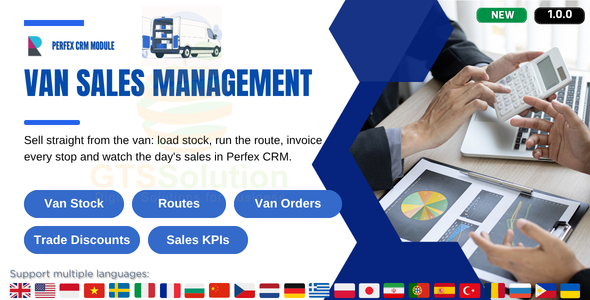
Note: This is a module for Perfex CRM. It is not a standalone application and requires a working Perfex CRM installation. Van stock is held in Inventory Management module, so the Inventory Management module for Perfex CRM must be installed.
Brief description
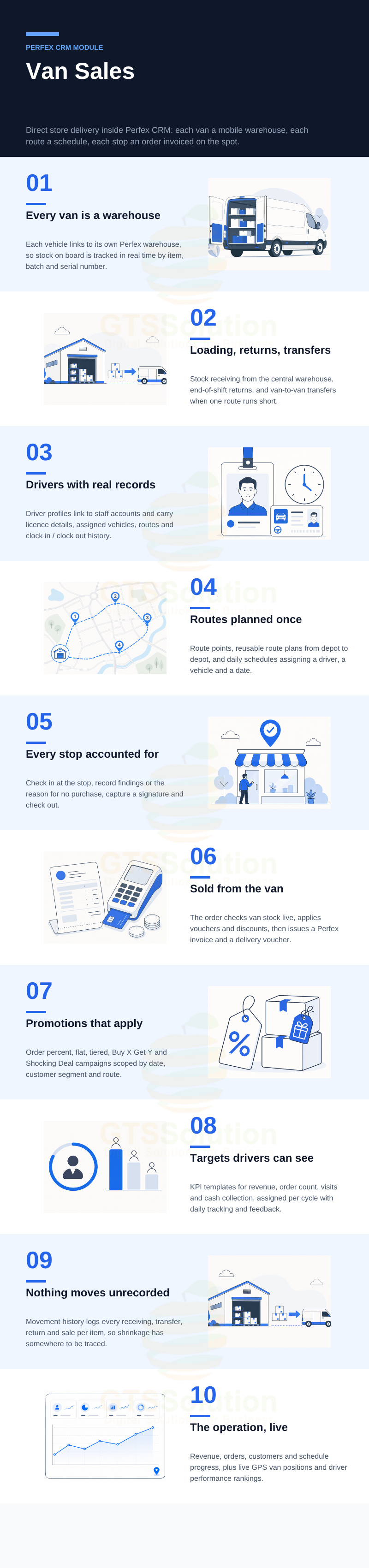
Van Sales brings direct store delivery into Perfex CRM. Each vehicle is linked to its own warehouse and becomes a mobile stock location: goods are loaded from the central warehouse onto the van, the driver runs a scheduled route, every stop is checked in and out, and the order is created, discounted, invoiced and delivered on the spot. What came back unsold is returned the same way it went out, and every movement in between is logged against the item.

What you get
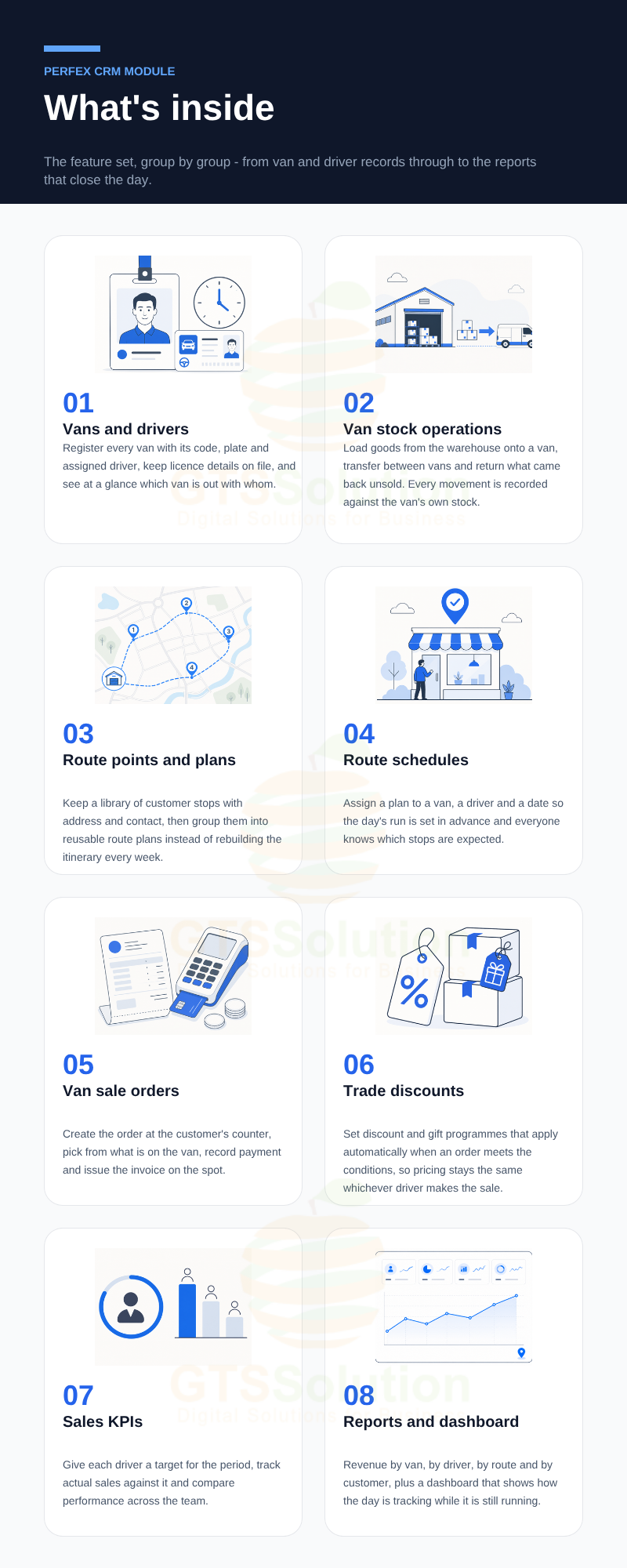
- A fleet register where each van is linked to a warehouse and a driver, with licences and clock in/out history.
- Stock receiving, returns and van-to-van transfers, each with an approval workflow and an automatic internal delivery document.
- Route points, reusable route plans on Google Maps, and dated schedules with live progress.
- Van sale orders with real-time van stock checking, vouchers and trade discounts, invoice and delivery voucher.
- Sales KPIs with templates, assignments, daily tracking and rankings.
- Seven reports and a three-tab dashboard covering revenue, routes, drivers and stock.
Module Features
- Van vehicles list — Manage the whole fleet in one place with licence plate, assigned driver, linked warehouse and operational status.
- Create and configure a vehicle — Record licence plate, vehicle name, make, model, capacity and production year.
- Vehicle detail — Inspect specifications, maintenance logs and the vehicle’s operational configuration.
- Mobile warehouse link — Each vehicle is tied to one Perfex warehouse, so the van’s stock is real inventory rather than a side note.
- Van stock inventory — See on-hand quantities per product inside each vehicle.
- GPS tracking map — Follow the live position of active vans on a map.
- Driver list and status — Keep driver records with an active/inactive switch and the vehicle currently assigned.
- Driver profiles — Create a driver, link the staff account and assign route jurisdictions.
- Vehicle assignment — Allocate a van to a driver for a shift or for ongoing operations.
- Driver licences — Record licence number, class, issue date and expiry date.
- Clock in / clock out history — Audit shift attendance with timestamps and total hours.
- Van stock receiving — Raise loading slips from the central warehouse onto a van at the start of a shift, from a list that covers every request.
- Receiving approval workflow — Check the loaded items and move the slip through draft, approved and delivered.
- Internal delivery on receiving — Generate the internal voucher that deducts central stock and credits the van.
- Van stock returns — Send unsold, damaged or near-expiry goods back to the central warehouse at the end of the route, with their own approval flow and internal receiving document.
- Van to van transfers — Rebalance stock when one van runs out and another on a nearby route has surplus, with a two-way transfer document confirmed on receipt.
- Route points directory — Keep every retail stop, distributor, mini-mart and depot in one catalogue.
- Route point configuration — Link the customer and address, set GPS coordinates and check-in radius, service hours, operating days, stop type (stop, start depot, end depot) and store category.
- Route plans — Build master templates of recurring routes with code, name, stop count and active status.
- Route plan designer — Sequence the visit from start depot through the retail stops and back to the end depot.
- Visual route mapping — See the full path and stop order on an embedded Google Map.
- Route schedules — Dispatch a plan for a given date with its vehicle and driver, and watch the completion bar move.
- Live route tracking — Follow the van on the map with each stop marked visited, in progress or pending.
- Stop visit actions — Check in, review the customer, create the sales order, attach merchandising photos and check out.
- Complete a visit — Record findings, log the reason when nothing was bought, capture the customer signature and close the stop.
- Visit history — Review completed stops with their check-in and check-out times, linked orders, photos and signatures.
- Break time logging — Log lunch, refuelling and maintenance stops so the schedule reads honestly.
- Van sale orders — Manage every direct-delivery order from one list.
- Order step 1 — Choose the customer stop, the van, the responsible driver, the currency and the payment terms.
- Order step 2 — Pick items and quantities while the system checks what is actually on that van right now.
- Vouchers and discounts on the order — Promotional vouchers, order discounts and tiered trade discounts are calculated for you.
- Direct invoicing — Create the Perfex invoice from the order screen and print the receipt at the counter.
- Automatic delivery voucher — Generate the internal voucher that takes the goods out of the van’s warehouse.
- KPI templates — Define the benchmarks you evaluate on: revenue, order count, visits and cash collection.
- KPI assignments — Give each mobile sales staff member their targets for a monthly or quarterly cycle.
- KPI dashboard — Read percentage achievement, target against actual, and staff rankings.
- Daily KPI tracking — Compare each day’s actual figures with the plan.
- Priority item targets — Track performance on strategic products and new launches separately.
- Daily KPI feedback — Supervisors record daily evaluation and coaching notes.
- Trade discount campaigns — Set campaign name, effective dates, customer segments and routes.
- Discount rules — Configure order percentage, flat discount, tiered discount, buy X get Y and shocking deal.
- Discount tiers — Define quantity or revenue tiers and the percentage or fixed amount each one earns.
- Movement history — An audit trail of every stock transaction per item: receiving, transfer, return and sale.
- Best selling and top customer report — Rank products by revenue and customers by purchasing.
- Sales by driver report — Volume, invoiced revenue, order count and average order value per driver.
- Sales by customer report — Purchase analysis, order frequency, total spending and outstanding receivables.
- Sales by route report — Compare revenue, visit conversion and volume across routes.
- Top products by route — The ten best sellers on each route.
- Inventory report by vehicle — A stock audit for each van.
- Dashboard overview — Revenue, sales orders, customers with an order and route schedule, plus revenue trends, live van positions and driver rankings.
- Dashboard sales tab — Product distribution, high-demand sales points and sales by route.
- Dashboard performance tab — Employee performance, time distribution between breaks and driving, performance trends and visit detail.
- Permissions — Separate what drivers, route managers and accountants can reach.
Good to know before you buy
- Each van is linked to the Inventory Management module for Perfex CRM, so your products and Inventory Management module need to be set up in Perfex CRM before the module has anything to move.
- Van stock changes through the module’s own documents — receiving, return, transfer and the delivery voucher on an order. Stock moved outside those documents will not reconcile by itself.
- Receiving, returns and transfers run through an approval workflow. Inventory moves when the document is approved and confirmed, not when the slip is first created.
- Route maps and live tracking use Google Maps and GPS positions reported by the driver’s device, so map features depend on that connection being available in the field.
- Orders create standard Perfex invoices. Collecting the money and recording the payment stays in the Perfex sales flow, so an invoice is not by itself proof of payment.
- KPI figures and reports are built from what was recorded in the module. Visits closed without check-in and check-out, or orders raised outside it, will not appear.
Demo
Set-up
Included documentation will help you upload and activate the module inside Perfex CRM, if you are not aware on how to do it.
Support
Our support team is always around to help. Feel free to raise a support ticket.
Guys from support department will get back to you as soon as possible with a reply, guiding you through any issues.
Changelog
Version 1.0.0 / 2026-11-03
Initial version


