
Login to your account!
Join the World's Largest Web App Marketplace!
Great to see you here!
Let’s set up your account in just a couple of steps.
Forgot password?
Enter your username or email to reset your account.
Appointment Booking for Perfex CRM - Online Scheduling & Client Portal
By : GreenTech_Solutions Published On Thursday, November 12, 2026, 07:48 In PHP Scripts
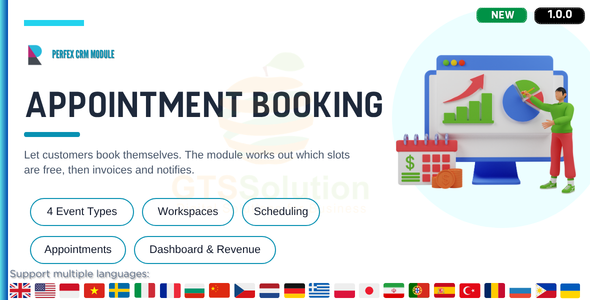
Note: This is a module for Perfex CRM. Not a standalone script.
Brief description
Appointment Booking Management handles appointments for your internal teams, your customers and your partners, inside the Perfex CRM you already run. Work is organised by Workspace, so each service, customer group or branch keeps its own Locations, Resources, Event Types and Appointments.
You configure working hours, exception days, locations, resources, custom fields and permissions once. From then on the module calculates the bookable slots for you, and your customers book themselves through the Client Portal.

What you get out of it
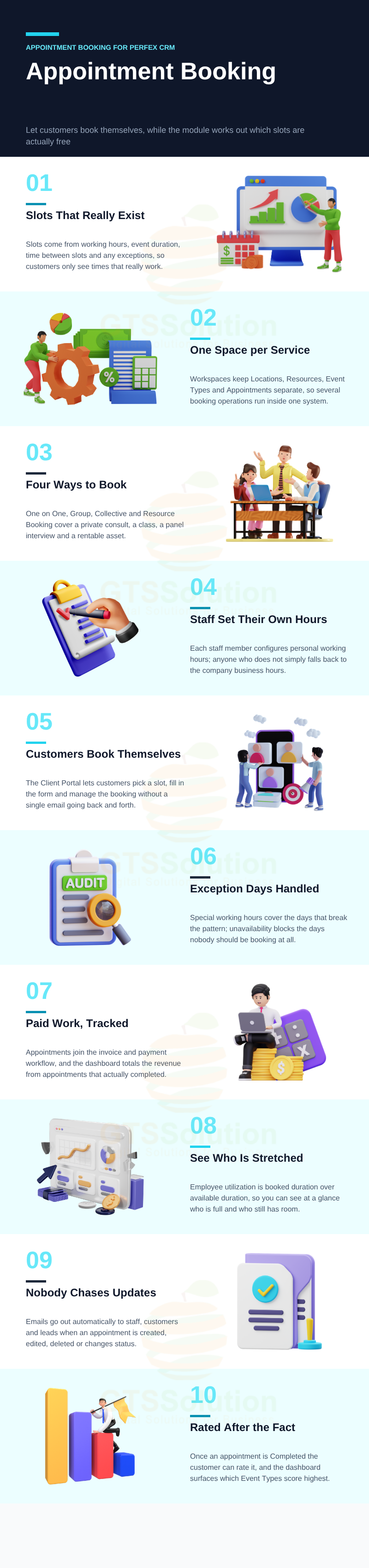
- Multi-service management — Workspaces isolate data so several booking operations can run inside the same system.
- Fewer scheduling conflicts — slots are calculated from working hours, event duration, time between slots, special working hours and unavailability.
- Staff-level flexibility — each staff member can set their own working hours; if they do not, the company business hours are used.
- Four booking models — One on One, Group, Collective and Resource Booking cover a wide range of operational scenarios.
- Revenue integration — appointments take part in the payment and invoice workflow, and the Dashboard summarises revenue from completed appointments.
- Customer self-service — the Client Portal lets customers create, view, cancel and pay for appointments where applicable, and rate the service afterwards.
- Performance monitoring — Daily Appointment Count, Employee Utilization, Status Overview, Highest Rated Event Type and revenue reports.
- Proactive notifications — emails go out when an appointment is created, edited, deleted or has its status changed.
- Clear permission governance — permissions are separated across Settings, Working Hours, Event Types, Appointments, Workspaces, Resources and Dashboard.
Module Features
-
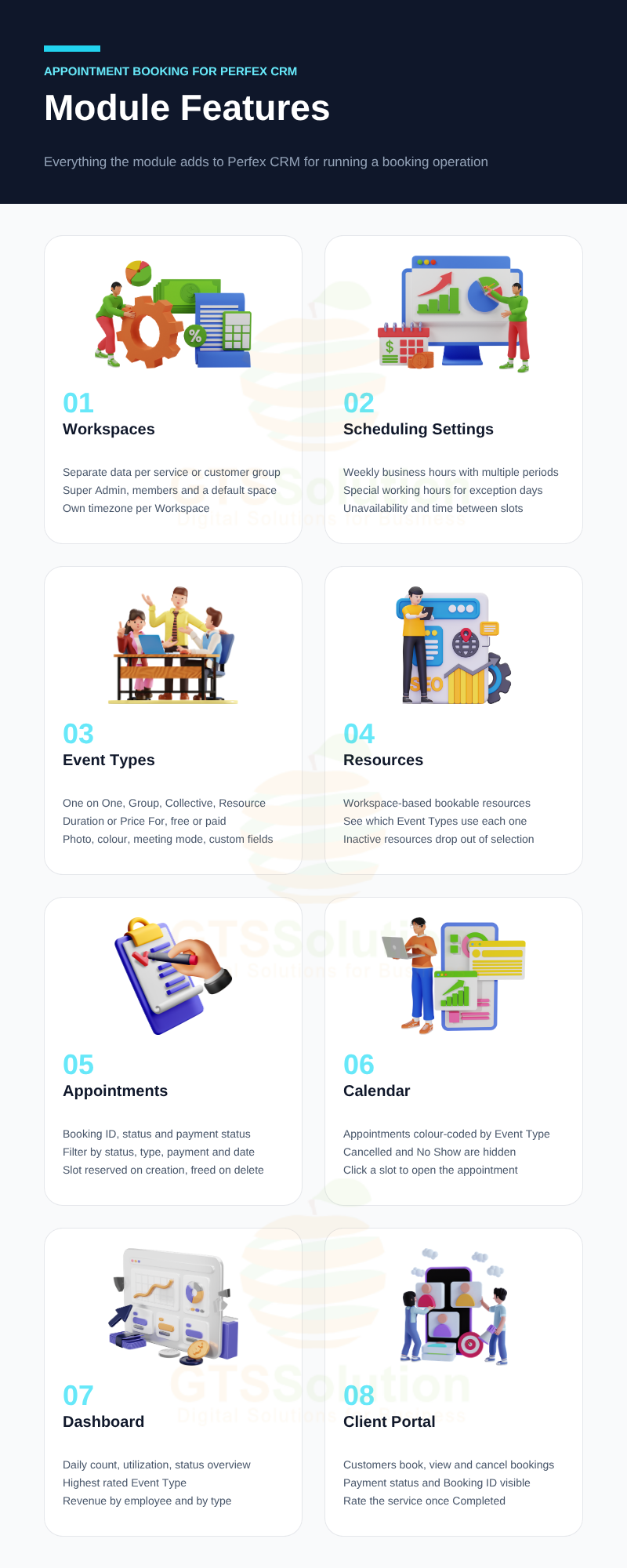
Workspaces — Separate Location, Resource, Event Type and Appointment data by Workspace.
- Each Workspace has a logo, name, Super Admin, default timezone and description.
- Add the staff and client members who take part in that Workspace.
- Mark one Workspace as default; a default Workspace cannot be deleted.
- The Workspace Super Admin manages its general information and its members.
- Business Hours — Define the company’s weekly working hours, with one or more working periods per day and closed days.
- Special Working Hours & Unavailability — Declare exception days that differ from the weekly pattern, and the dates or time periods when booking is not allowed at all. Both feed straight into slot calculation.
- My Working Hours — Staff set their own working hours, special working hours and unavailability. A staff member with nothing configured falls back to the company business hours.
- Automatic Slot Calculation — Available slots come from business or personal working hours, the event duration, the configured time between slots, special working hours and unavailability. A customer only ever sees times that actually work.
- In-Person Locations — Manage the locations used for offline Event Types, with address and latitude/longitude. Customers see where the event takes place on a map. Google Map support is configured with your own API key.
- Custom Fields & Field Sets — Build the Field Sets that should be collected at booking time, and attach a Field Set to an Event Type. Those fields then appear on the booking form.
- Resources — Create Workspace-based resources that customers can book, and review the Event Types that use each one. An inactive Resource can no longer be selected when creating an Event Type.
-
Four Event Type models
- One on One — one customer with one staff member, with a duration.
- Group Booking — several customers with one staff member at a fixed date and time, limited by the number of seats.
- Collective Booking — one customer with several staff members, with a duration.
- Resource Booking — one customer with one resource, priced per a defined block of time.
- Event Type configuration — Photo, name, duration or Price For, free or paid price, meeting mode (online or an in-person location), colour on the calendar, assigned users or resources, custom fields and description.
- Public Links and private Event Types — A public Event Type gets a public booking link. A private Event Type shows no public link but can still be booked from the Client Portal after login.
- Event Type actions — Copy, edit, activate, deactivate and delete, subject to the rules. An Event Type that already has appointments cannot be edited or deleted.
- Reminders — Create staff reminders per Event Type, with a schedule, a recipient and a description.
-
Appointments — Create an appointment from an active Event Type. The user or resource is filled in automatically; you pick the date and time from the available slots and relate the appointment to a Customer or a Lead.
- Track Booking ID, time, Event Type, user or resource, customer or lead, price, payment status and status.
- Filter the list by status, Event Type, payment status and date range.
- Once created, a slot is reserved even if the appointment has not been paid for; deleting the appointment releases it.
- Only Draft appointments that have not generated an invoice can be edited.
- An appointment with no start time cannot change status and cannot generate an invoice.
- Calendar — See appointments on a calendar, colour-coded by Event Type. Cancelled and No Show appointments are not shown.
- Dashboard — Filter by Workspace and time range, then read Daily Appointment Count, Employee Utilization Report, Appointment Status Overview, Highest Rated Event Type, Revenue Report by Employee and Revenue Report by Completed Type. Employee utilization is total booked duration divided by total available duration.
- Email Notifications — Emails are sent to staff, customers and leads when an appointment is created, edited, deleted or has its status changed. Content is managed under Setup → Email Templates → Appointment Booking.
-
Client Portal — Once enabled, customers log in and book for themselves.
- Choose an Event Type and a slot, fill in the custom fields and create the booking.
- See booking history, Booking ID, payment status and appointment details.
- Cancel a Draft appointment that has not generated an invoice; an invoiced appointment can no longer be cancelled.
- Rate the service after an appointment is marked Completed, and edit that rating later.
- Permissions — Assign View Own or Global scope plus Create, Edit and Delete for Event Types, Appointments, Workspaces and Resources, along with View Dashboard, View My Working Hours and Edit Settings.
Good to know before you buy
- Resources do not currently block overlapping schedules between different customers automatically — check this when reviewing bookings.
- A created appointment reserves its slot even before payment; the slot is released only when the record is deleted.
- If the appointment is related to a Lead, no invoice is created for that Lead even when the Event Type is chargeable.
- The Calendar does not display Cancelled or No Show appointments.
Demo
Appointment Booking and Scheduling Demo
Set-up
Included documentation will help you upload and activate the module inside Perfex CRM, if you are not aware on how to do it.
Support
Our support team is always around to help. Feel free to raise a support ticket.
Guys from support department will get back to you as soon as possible with a reply, guiding you through any issues.
Changelog
Version 1.0.0 / 2026-10-13
Initial version


